Video Studio
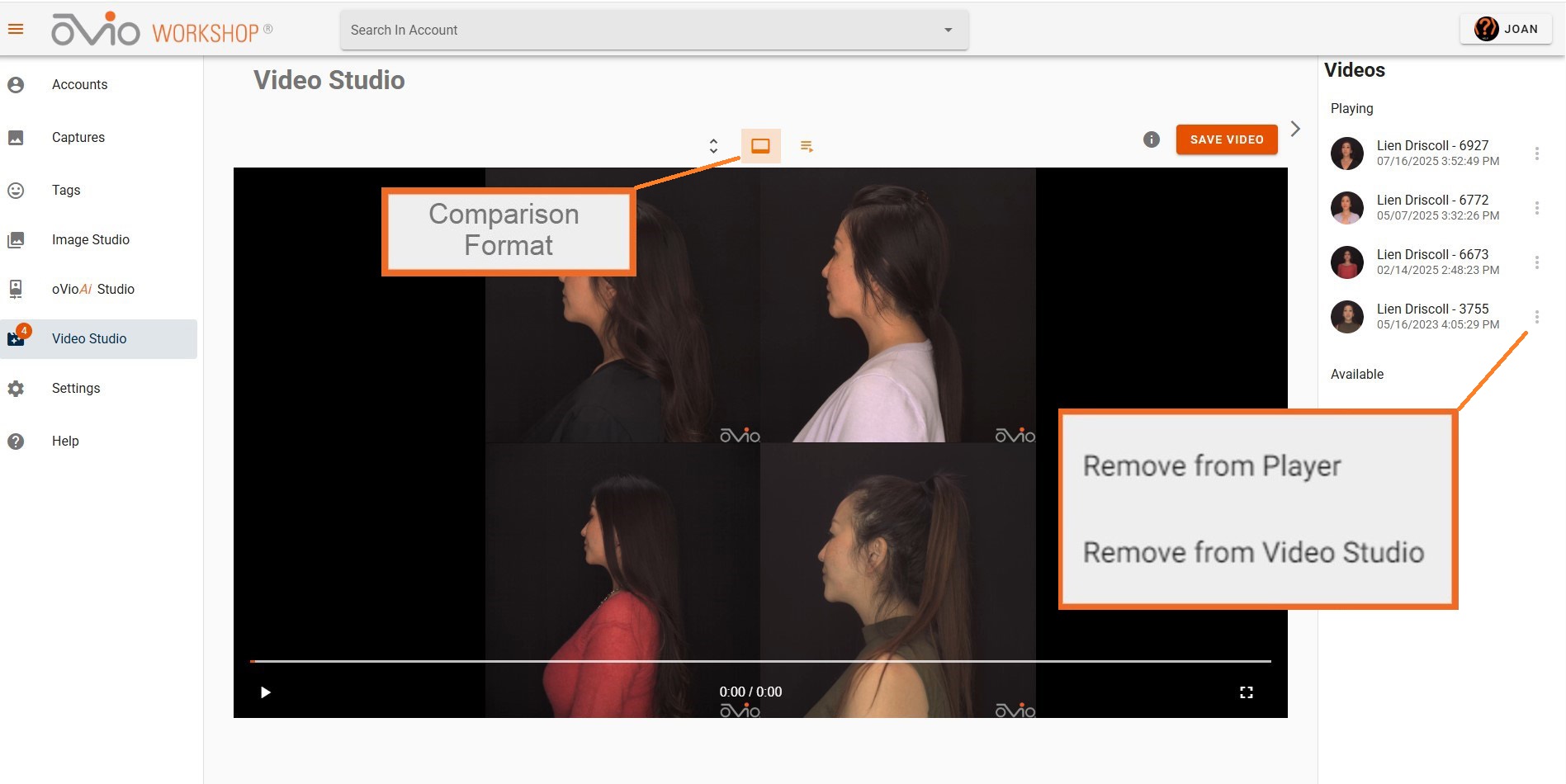
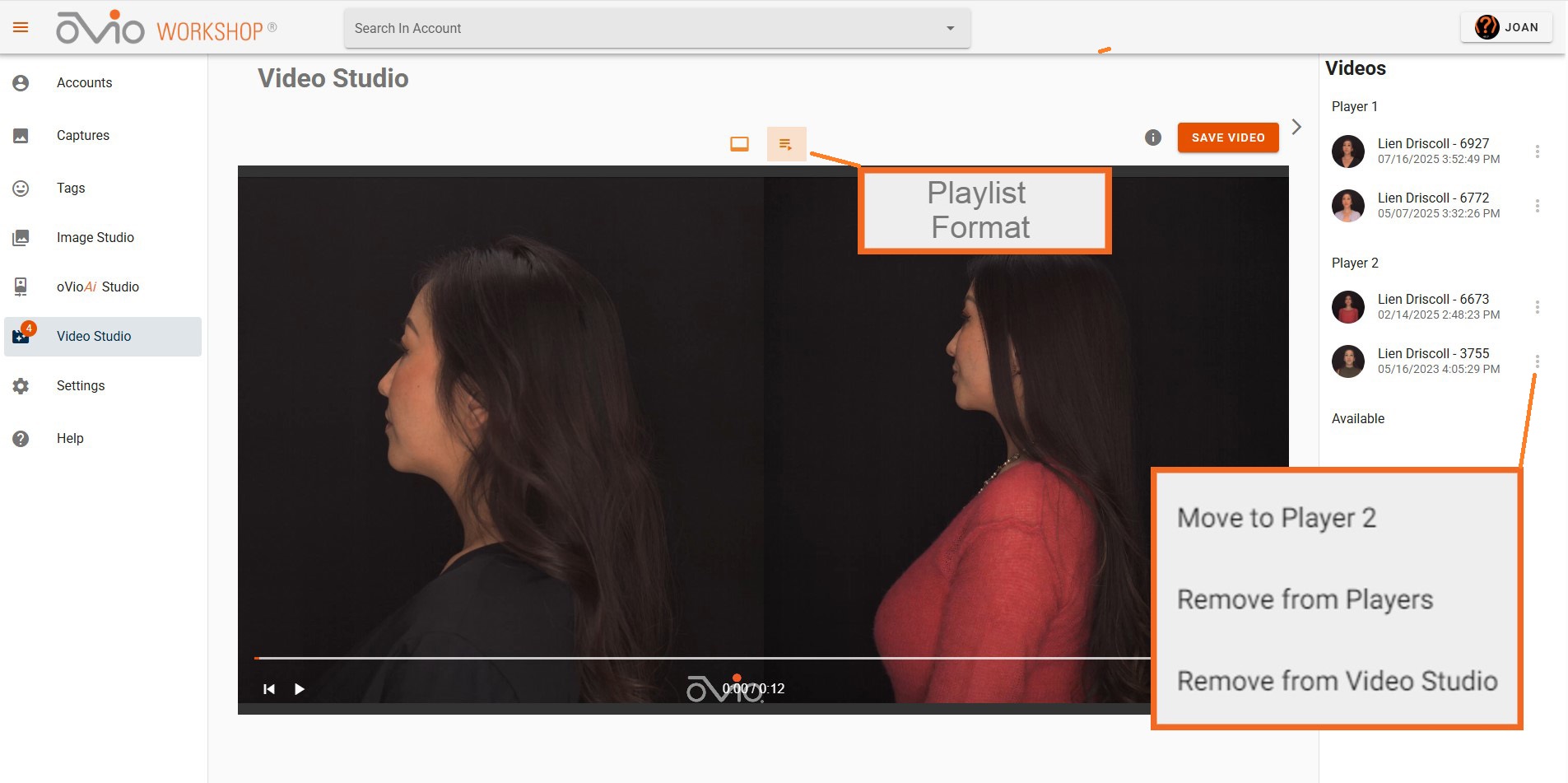
If User has added two or more Videos to the Image Studio, User may view the videos in either a comparison format or playlist format by toggling between the two icons at the top. User may also edit the position of videos in each player by dragging and dropping the video icon in the right panel. Additionally, the content of each player can be edited by clicking on the ellipsis to the right of the image icon.
Clicking on any of the Captures displayed under Videos in the right panel will take the user to that Capture Review Page.
Control for Full Screen mode is located in the player controls at the bottom right. All images are cleared from the Studio at log out.
The toggle to the left of the comparison icon will change the orientation view in the Video Studio. This will not affect the orientation for export of the video. User can select the orientation at download if there are no more than two videos being exported.
Video Studio Export
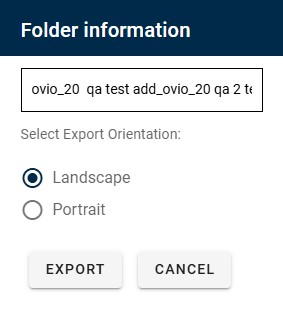
Comparison Videos or Playlists may be saved by clicking on the "Save Video" icon at the top right. User will be navigated to the Video Review page where a dialog will appear indicating that the Export is in process. User can remain on the Video Review page for download to appear or check their email or the Account later for the download. After clicking Download, User will have the option to custom name the export file and to export in landscape or portrait mode if only two videos are present.