Image Studio
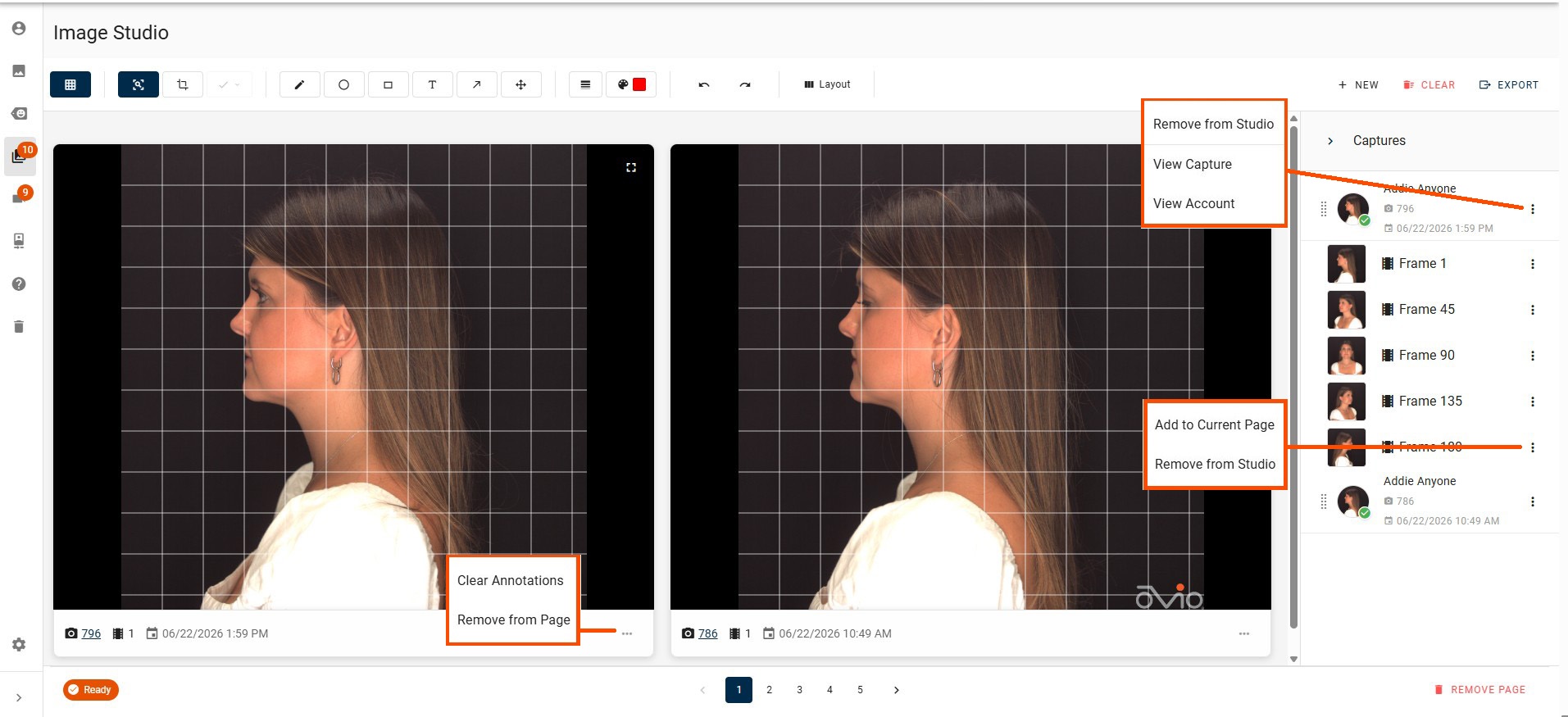
The image count will appear in the Image Studio tab in the left navigation bar. The icons above the images display editing options available for individual frames, in addition to a Layout button for changing viewing orientation of the current page. Hovering over each icon displays its unique application (toggle grid is displayed in the image below for help in aligning cropping of side by side images). If cropping is desired, it must be applied prior to any other edit.
Clicking on the ellipsis below the image will allow clearing annotations or removing from the current page. Images are displayed by default by matching frames. All images in a Capture may be removed by clicking on the ellipsis to the right of the Capture ID. All Images are cleared from the Image Studio at User log out.
User may rearrange the display by accessing the menu from the ellipsis in the right-hand column of the page. The Captures with all frames associated can be dragged from one position on the page to another by clicking on the dots to the left of the Capture in the right panel and dragging it to the desired position.
Clicking on the Capture ID number will take the user to that Capture Review Page.
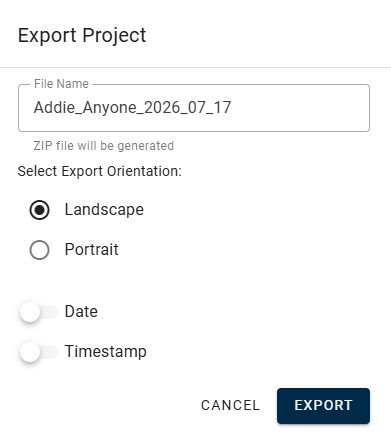
Export
Edited Images or Comparisons may be saved by utilizing the Export button and a dialog box for Export will appear on the User's screen, at which time the User may select between Landscape or Portrait mode if no more than two images are selected per page. Additionally, User can also rename the export, if desired. Default location for downloads is the download folder of the User's browser. There is also an option to choose an overlay of time and/or date.