Video Studio
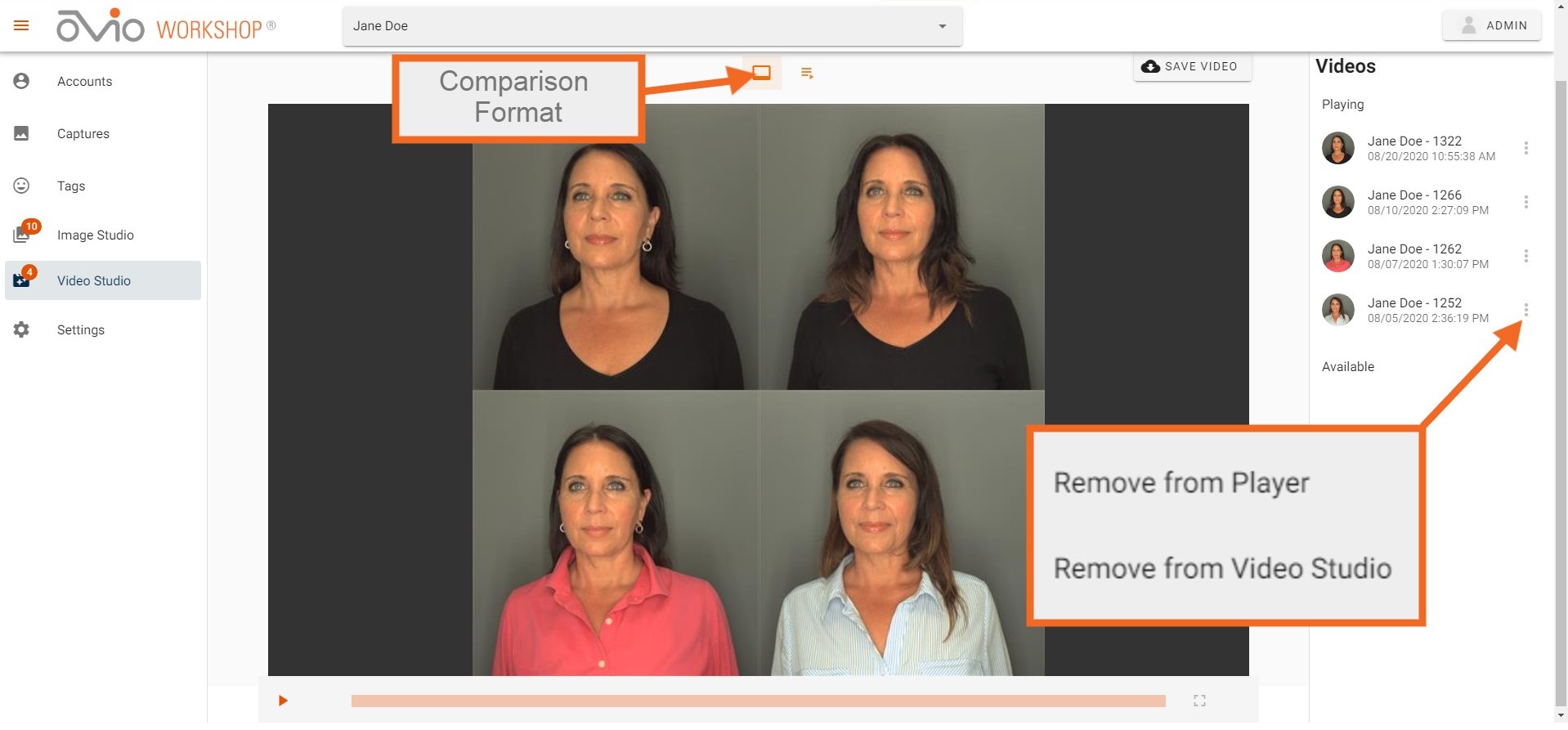
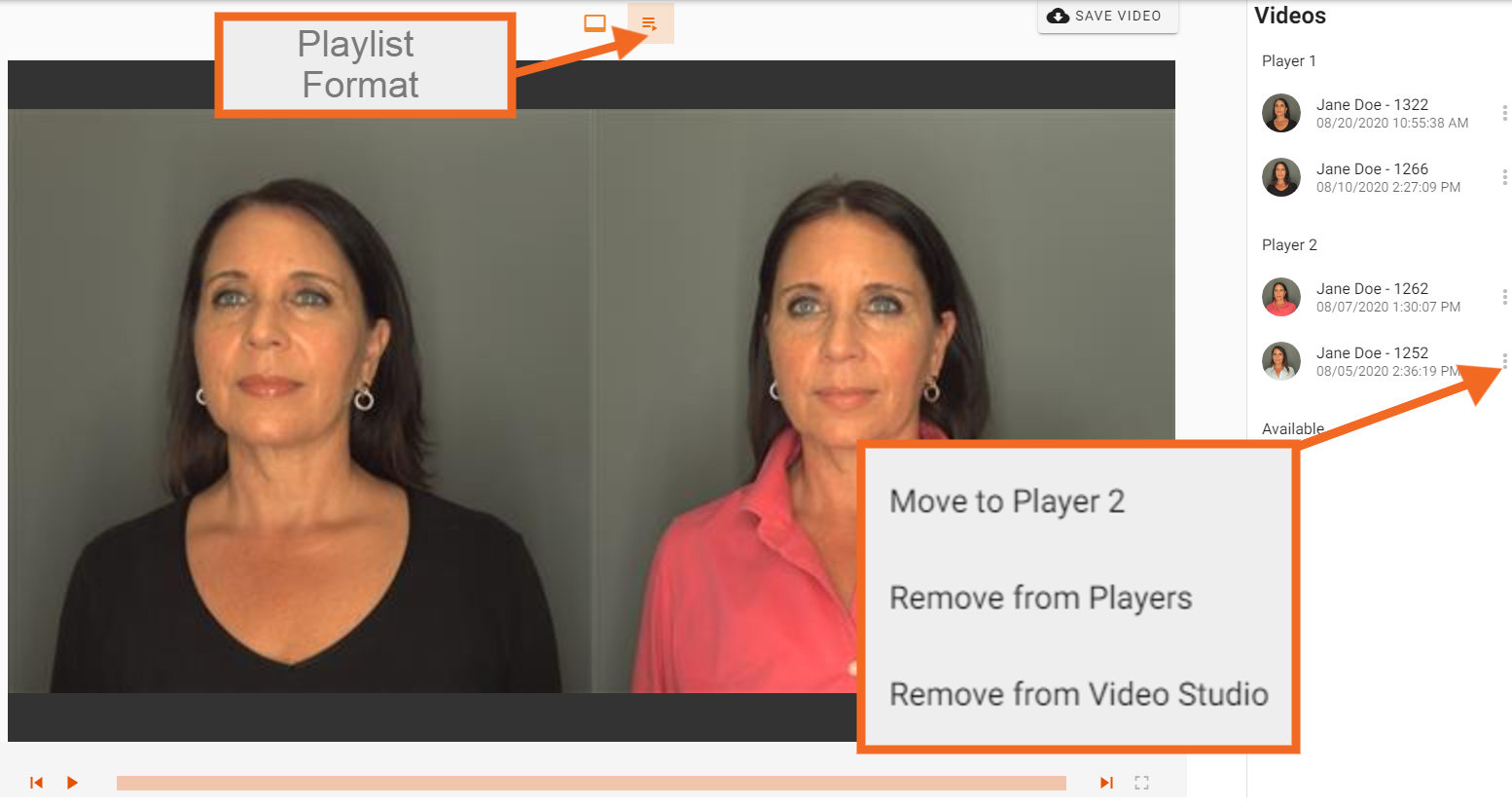
If User has added two or more Videos to the Image Studio, User may view the videos in either a comparison format or playlist format by toggling between the two icons at the top. User may also edit the position of videos in each player by dragging and dropping the video icon in the right panel. Additionally, the content of each player can be edited by clicking on the ellipsis to the right of the image icon.
Clicking on any of the Captures displayed under Videos in the right panel will take the user to that Capture Review Page.
Control for Full Screen mode is located in the player controls at the bottom right. All images are cleared from the Studio at log out.
Video Studio Export
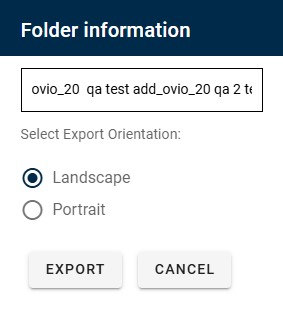
Comparison Videos or Playlists may be saved by clicking on the "Save Video" icon at the top right. A dialog box for Export will appear on the User's screen, at which time the file can be renamed if desired and if no more than two videos are loaded in the studio, User will have the option of selecting Landscape or Portrait mode for the export. User will receive an email indicating the Video Project has been processed with a link for access to Download. Video Projects will also be stored in the individual's Account and can be downloaded by clicking on the Project and then clicking download.