Accounts
The Accounts Page is the main page of Workshop where all accounts can be searched and new accounts can be added.
Other Workshop sections are available via the navigation panel to the left of the page. The panel may be collapsed to optimize sizing on all pages by clicking on Collapse Navigation at the lower left of the panel. The icons will remain and be actionable. Captures tab displays all Captures recorded by date. Tags tab displays all tags associated with Captures.
The "Search" bar can be utilized for searching Accounts from every page of the software with the exception of the Tags Page which will search for Tags associated with Captures.
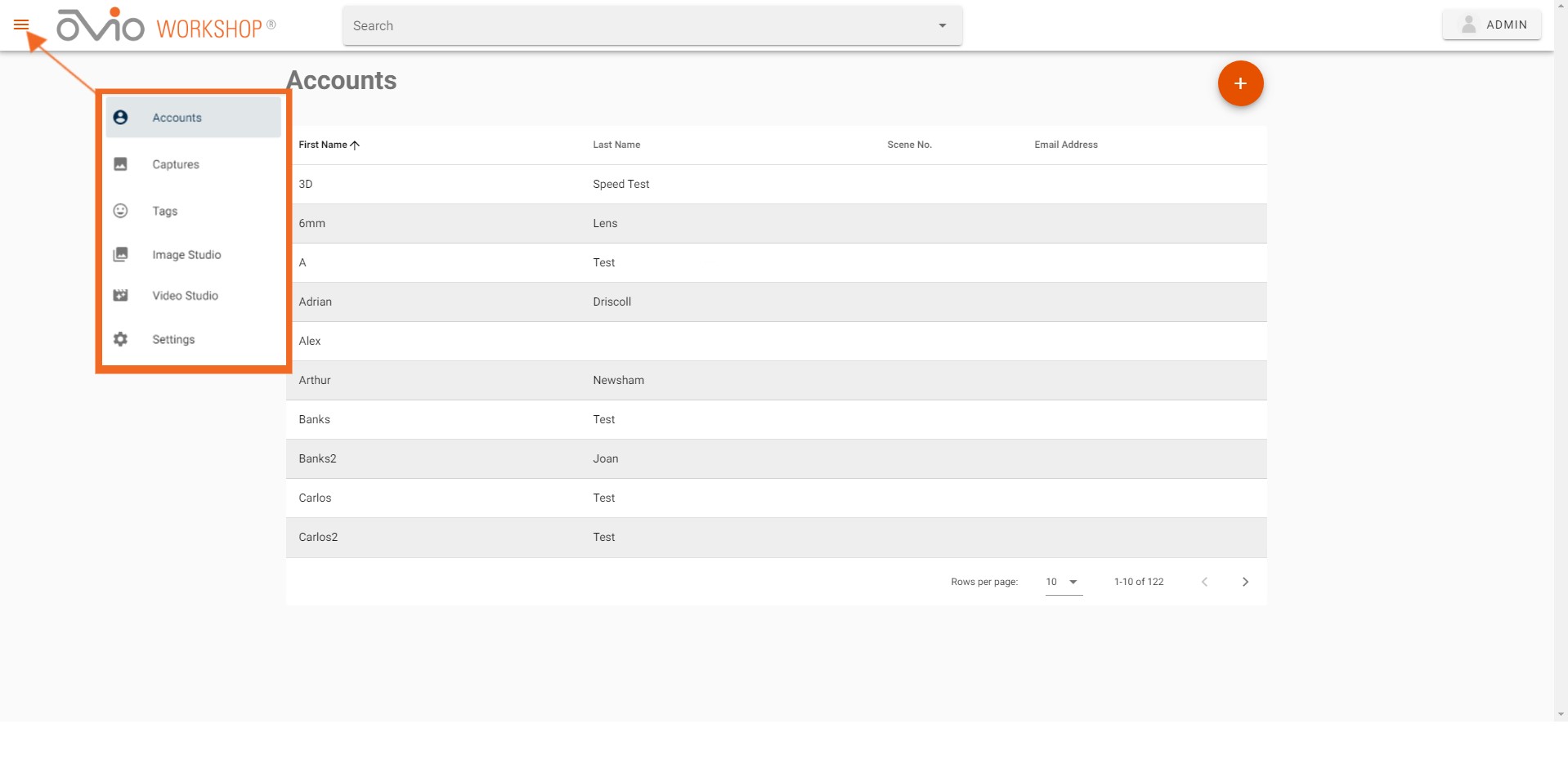
Accounts
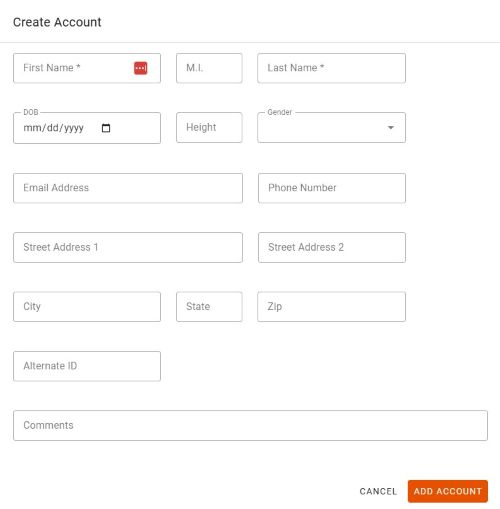
To access an Account, click on the Account in the main list of Accounts or using the "Search" bar at the top of the page which will populate a drop down menu of Accounts as you type. A new Account can be added by clicking on the orange "+" button to the top right. A field with an asterik is a required field and an Account cannot be added without completing that field. TouchMD integration requires first and last name case and style to match and DOB field to be populated.
Account Details Page
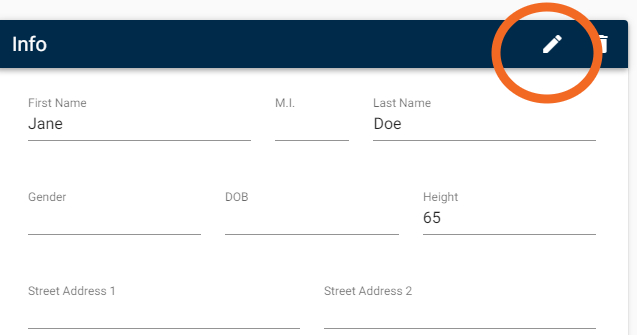
Once an Account is identified, the user will be taken to the main Account Page. From here, all account details can be viewed and edited. To edit, click on the pencil in the blue menu and click Update Account when finished.
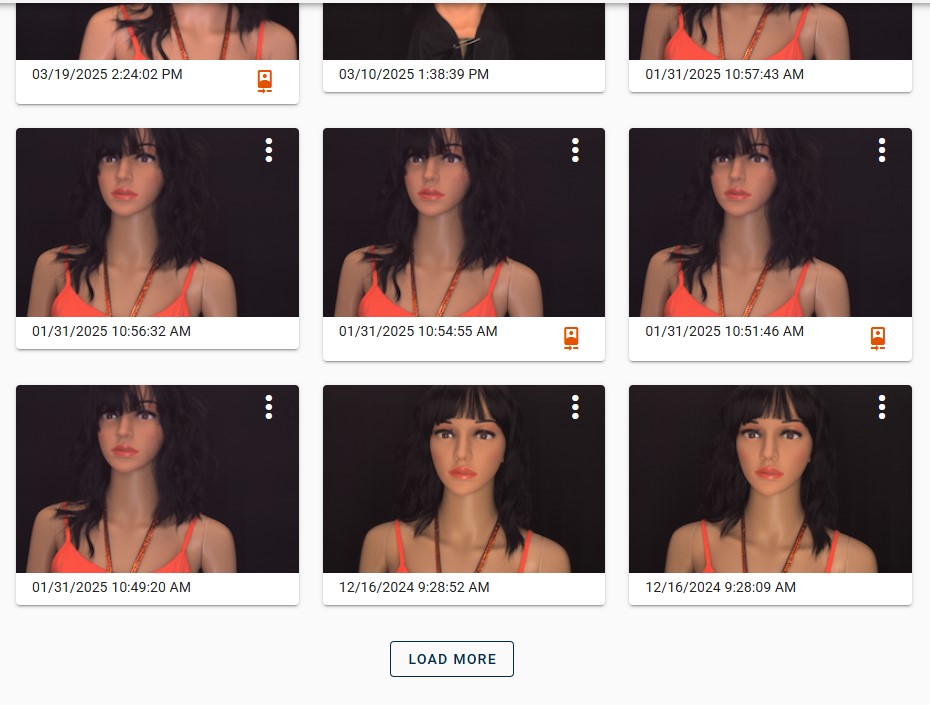
All Captures associated with the Account can be previewed, searched, or navigated to from the Captures section on the main Account page. A number bubble in the section header indicates the total number of Captures in the Account. A speaker icon  indicates an attached Audio Capture, while
  indicates an associated Ai Project. A drop down menu is available by clicking on the ellipsis in the corner of any Capture which offers the option of adding preset images (default presets or customer defined presets) to the Image Studio or videos to the Video Studio, as well as deleting the Capture. Captures can be scrolled through using the vertical scroll bar to the right of the Capture thumbnails.
Image, Video, and Ai Studio Projects
Below the Captures section are sections for each of the Studios: Image, Video, and Ai with number bubbles indicating the number of projects created in each Studio. To view each Studio's projects, click on the down arrow to the right of the section header and thumbnails for the projects will appear and can be scrolled through using the vertical scroll bar. When each section is expanded, clicking on the arrow again will collapse it to only the section header again.
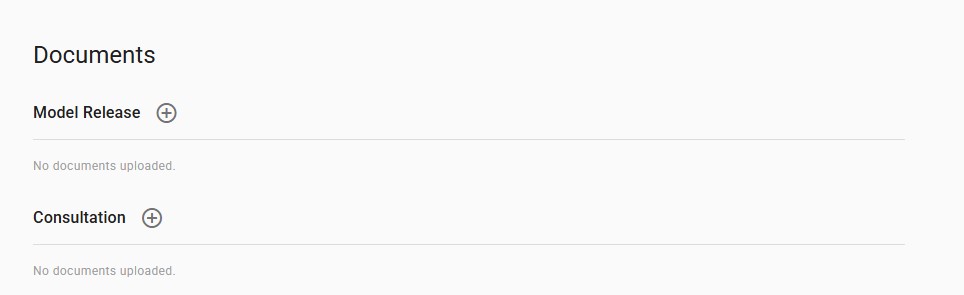
Account Documents
Documents may also be appended to any Account by clicking on the "+" symbol for any preset Document type in the Documents section immediately below Account Details. A popup will appear allowing User to search their system for documents available for upload.
Delete Account
If a User has the appropriate permission level, they can Delete an Account by clicking on the trash can in the upper right corner of the Account Details section of the Account Page; however all Captures and Image, Video or Ai Studio Projects associated with the Account must be deleted or reassigned first as described in the next section of this Guide. For more information on Reassigning Captures see the Capture Review section of this Guide.
Delete Captures and Projects
To Delete Captures, click on the ellipsis of the Capture thumbnail on either the Captures Page or the Account Page or the ellipsis in the upper right of the Capture Review Page and select "Delete". To Delete Image, Video or Ai Studio Projects, click on the ellipsis at the corner of the thumbnail and select "Delete".