Accounts
The Accounts Page is the main page of Workshop where all accounts can be searched using search as the User types and new accounts can be added.
Other Workshop sections are available via a drop down menu by clicking on the hamburger to the left of the page. Captures tab displays all Captures recorded by date. Tags tab displays all tags associated with Captures.
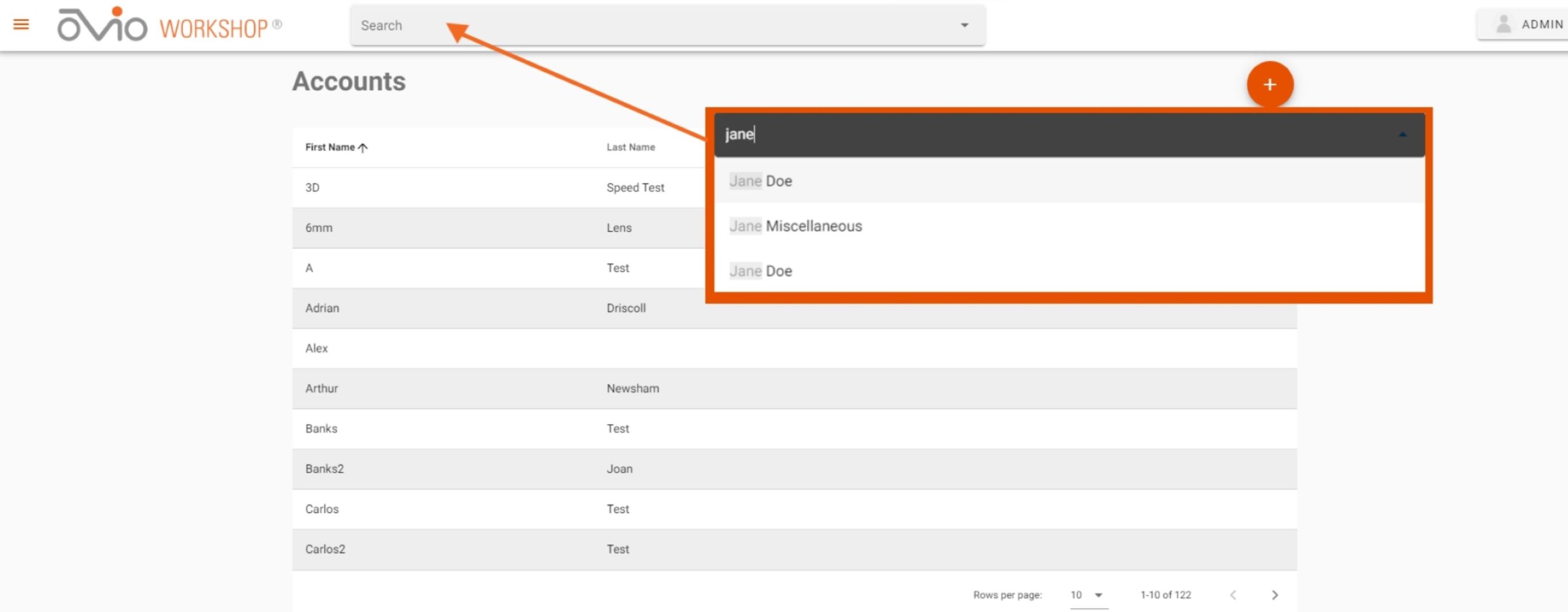
The "Search" bar can be utilized for searching Accounts from every page of the software with the exception of the Tags Page which will search for Tags associated with Captures.
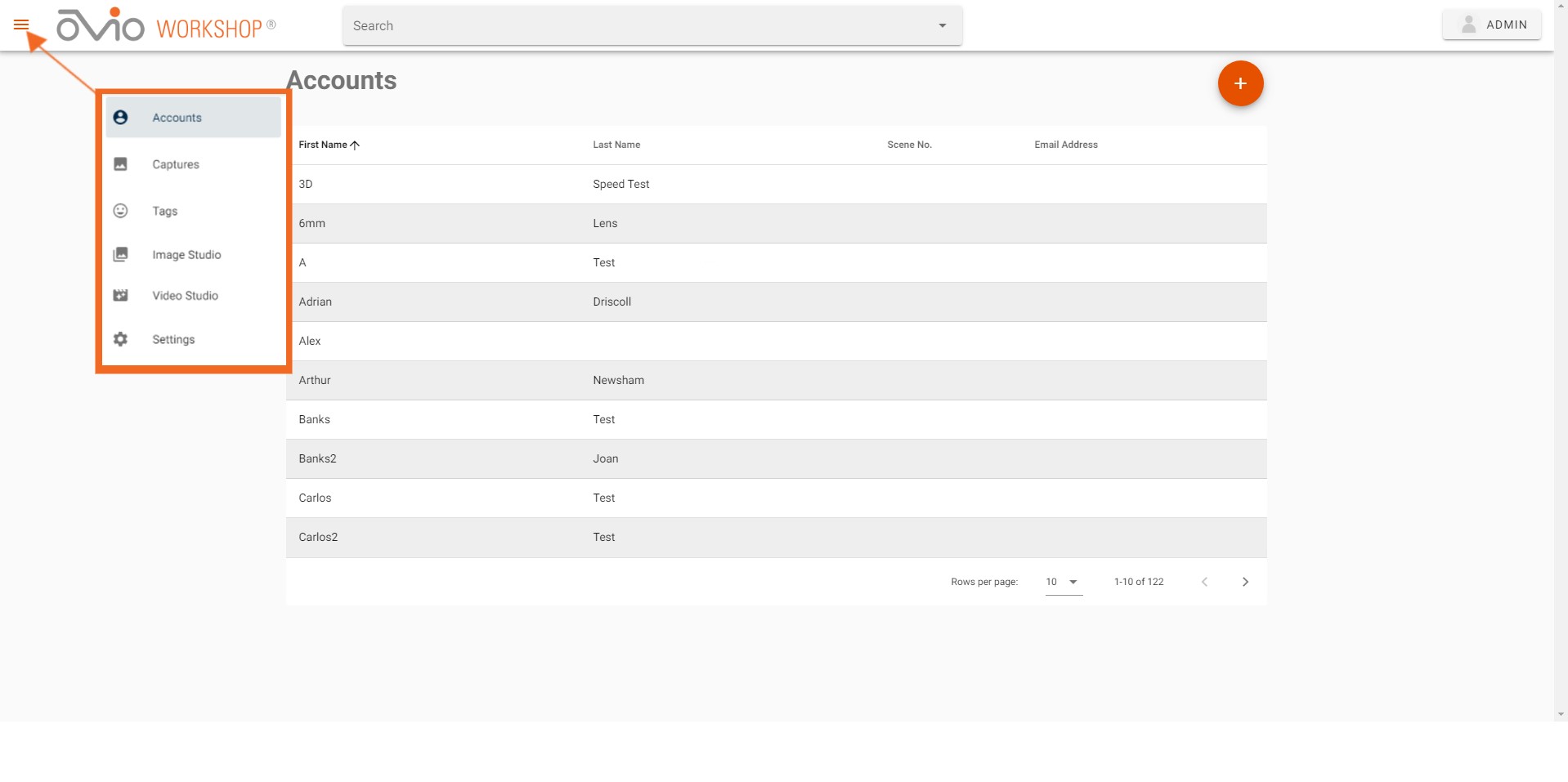
Accounts
To access an Account, click on the Account in the main list of Accounts or using the "Search" bar at the top of the page which will populate a drop down menu of Accounts as you type. A new Account can be added by clicking on the orange "+" button to the top right. TouchMD integration requires first and last name case and style to match and DOB field to be populated.
Account Details Page
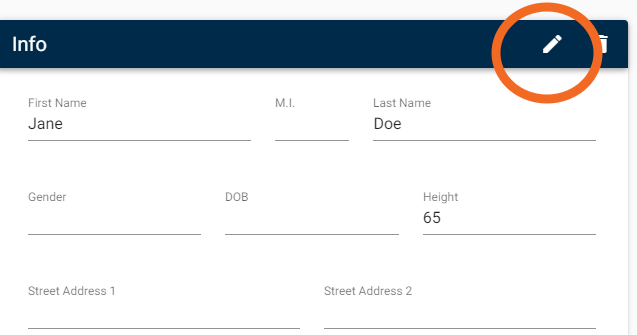
Once an Account is identified, the user will be taken to the main Account Page. From here, all account details can be viewed and edited. To edit, click on the pencil in the blue menu and click "Save Account" when finished.
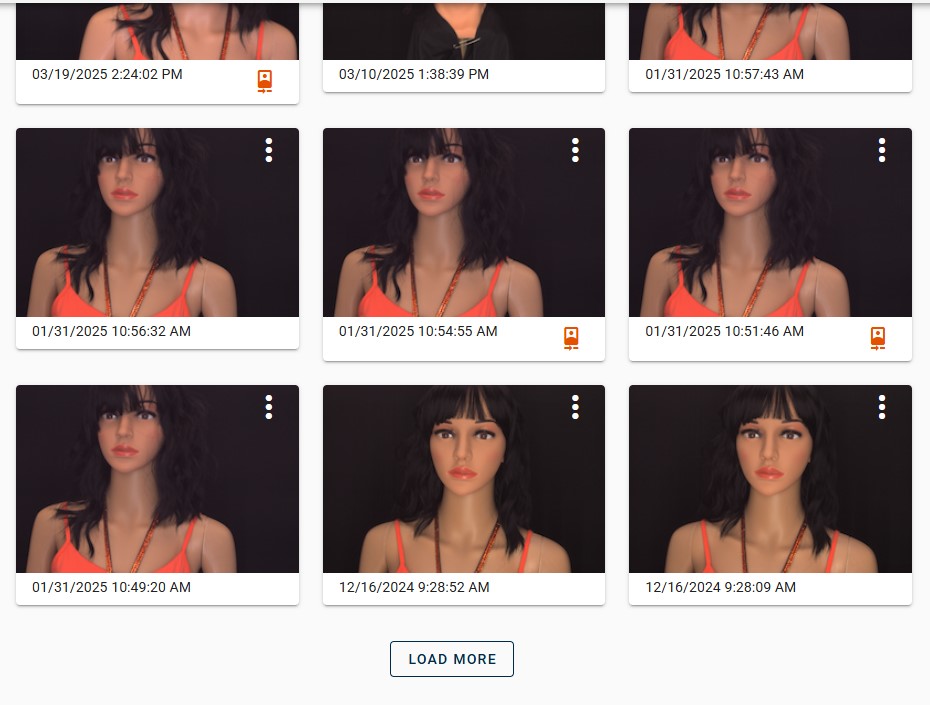
All Captures associated with the Account can be previewed, searched, or navigated to from the main Account page. A musical note icon  indicates an attached Audio Capture, while
  indicates an associated Ai Project. A drop down menu available by clicking on the ellipsis in the corner of any Capture offers the option of adding preset images (default presets or customer defined custom presets) to the Image Studio or videos to the Video Studio as well as deleting the Capture. If more than nine Captures are associated with the Account a "Load More" button will appear below the visible Captures for User to access additional Captures.
Image, Video, and Ai Studio Projects
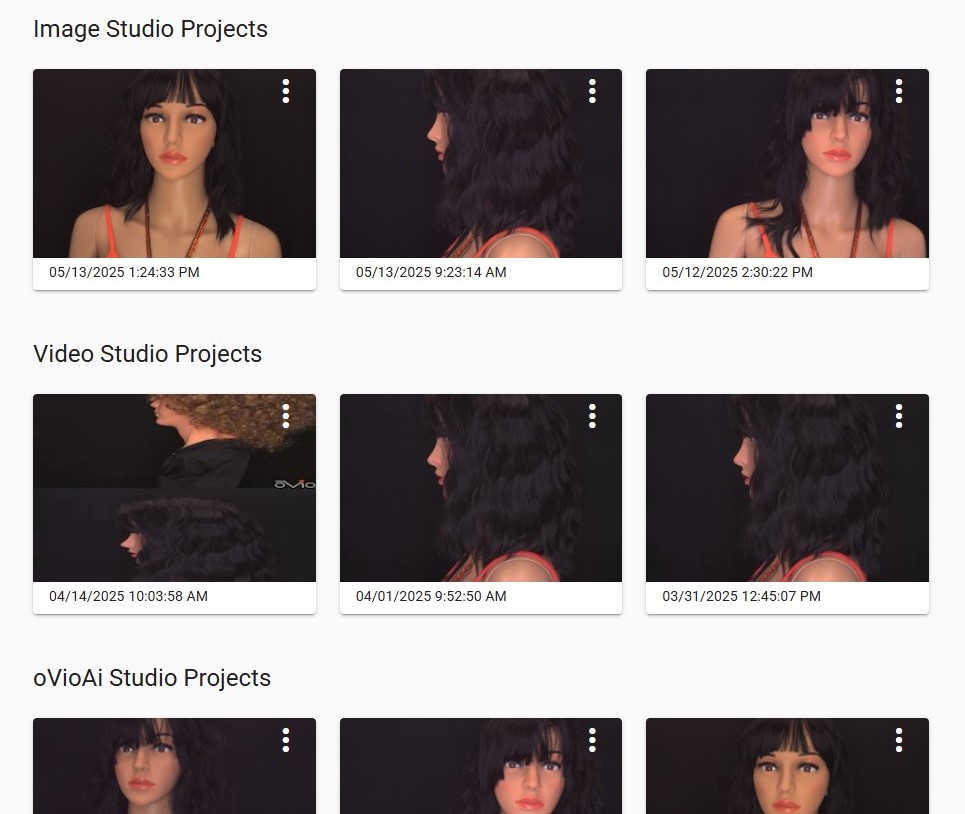
If previous Image, Video, or Ai Studio Projects have been created they will appear below the thumbnails of all Captures associated with the Account. A Project can be reviewed and/or downloaded by clicking on the image.
Account Documents
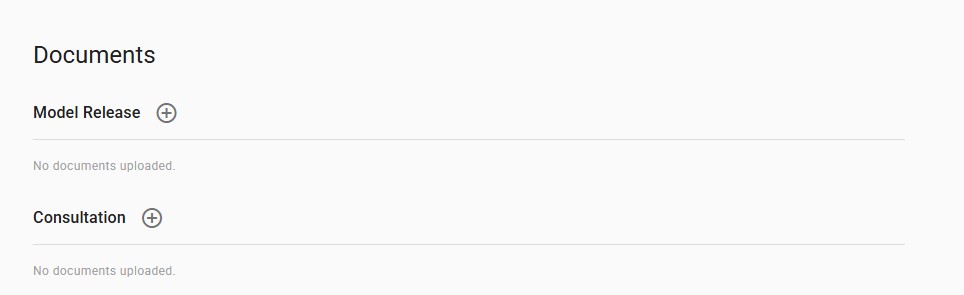
Documents may also be appended to any Account by clicking on the "Upload" button located beneath the last Capture.
Delete Captures and Projects
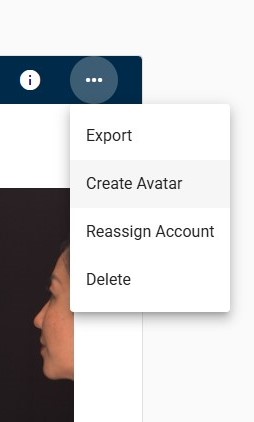
If user has the appropriate permission level, they may also be able to Delete the Account, however all Captures associated with the Account must be deleted or reassigned first. From either the Account Page or the Capture Review Page click on the ellipsis as shown below and select Delete.
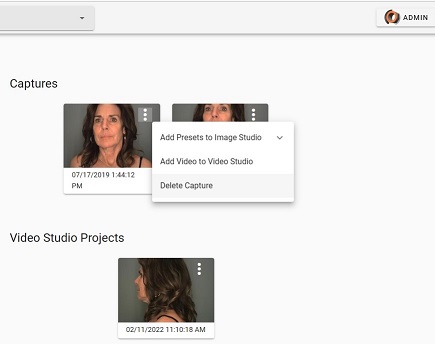
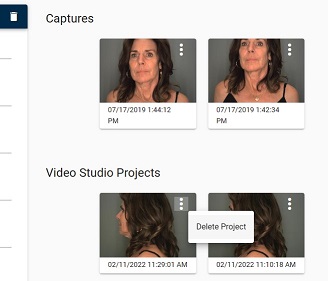
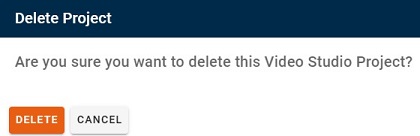
Captures with associted Image Studio or Video Studio Projects require those Projects to be deleted prior to Capture Delete.

Delete Account
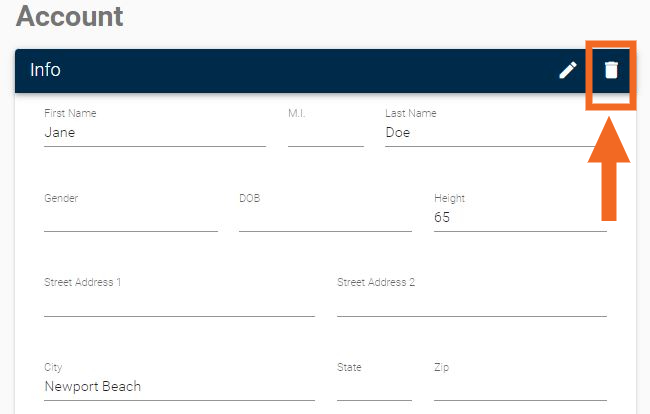
Once all Captures are deleted in an account, the Account can be deleted by clicking on the garbage can symbol located at the top of the Account information.