oVioAi Studio
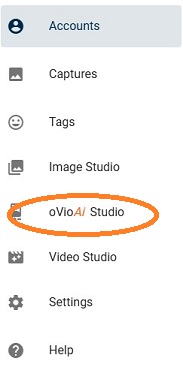
If oVioAi has been enabled for your system, a Tab labeled oVioAi Studio will appear in the left panel as well as an option to Add to oVioAi Studio in drop down menus from the ellipsis in the upper left of Capture thumbnails.
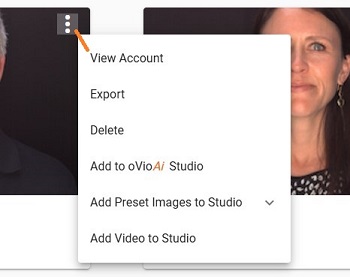
Selecting Add to oVioAi from a Capture ellipsis will add the preset frames designated in settings for oVioAi. Individual still frames can be selected from the Capture Review page to add to oVioAi Studio as well.
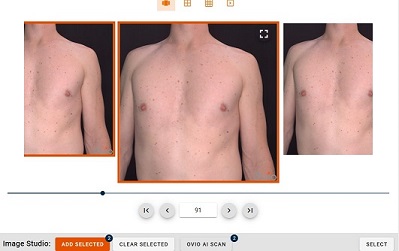
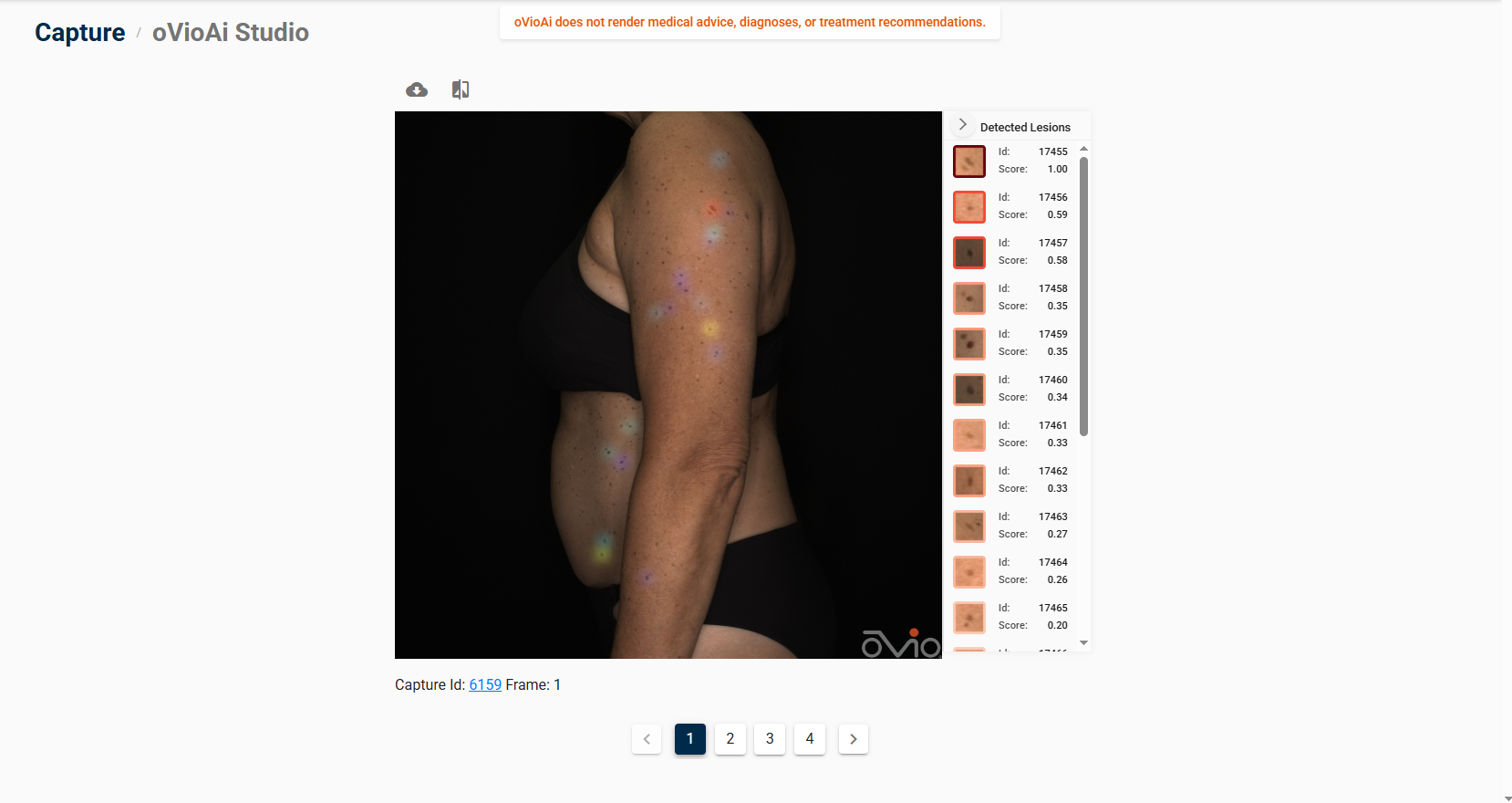
Once either preset frames or individually selected frames are added to oVioAi Studio, user will be redirected to oVioAi Studio where the processing will have automatically started. Once complete, the still frame will appear with highlighted lesions and a Results panel identifying each detected lesion. If the user hovers over the lesion in the Results panel, a box will appear over the lesion in the still frame. If no lesions are detected a box will appear indicating analysis is completed and no lesions were detected. User can change the Preset Frames for oVioAi in Settings>Preset Frame Profiles.
oVioAi Projects
oVioAi Projects are automatically saved to the individuals Account Page and can be reviewed at anytime by clicking on the Project. Projects can also be exported from either the oVioAi Studio directly or by opening the Project from the individual's Account Page, then clicking on the cloud icon. The default location for export files is the download folder of users browser. Exports can be renamed by user at time of export. Images are exported in a zip folder containing the main still image and separate images for each detected lesion.
Side by Side Comparisons
Users may review two separate Ai Projects from the same Account from the oVioAi Studio after running a scan or viewing a previous scan by selecting from the Ai Projects on the Account Page. The comparison tool can be found to the left above the Project display. After clicking on the tool, a display of available Projects will appear for User to select the comparison Project.
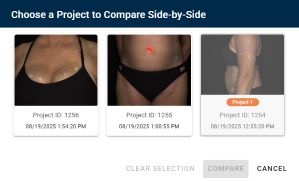
The side by side comparison will appear after clicking Compare. The comparison project (second project selected) can be changed by clicking on the comparison tool again and selecting a different project.
oVioAi Exports
A single oVioAi Project or a Side by Side Comparison maybe exported by clicking on the cloud icon  above the project. Custom file naming is available at export. The project downloads to the default location in the Users browser as a zip file containing the main image and individual images of each mole as well as a PDF report.